Pixel Art Grid
Print a grid, draw, or turn a photo into squares.
A blank 16 × 16 grid with 5 mm squares.
Grid and print settings
Fits on 1 sheet, squares 12.2 mm.
Print at Actual size (100%), not Fit to page: every sheet states its square size.
Your drawing is saved in this browser and comes back when you return. Photos never leave your device.
How to use the pixel art grid
The switch above the grid has three modes. They all share one grid size, so you can plan on paper, draw on screen and print the same grid.
Blank grid
- Set the size. Type the columns and rows (4 to 128 each), or tap a square size such as 8 × 8, 16 × 16, 24 × 24, 32 × 32, 48 × 48, 64 × 64.
- Choose the print size. Fit on one sheet (the default) picks the largest squares that put the whole grid on one page. True size uses the square size you type, in millimeters or inches (3 to 25 mm, or 0.15 to 1 in), and splits a big grid evenly over several sheets. A line under the buttons says how it will print, for example on 1 sheet with 4.2 mm squares.
- Pick the look. Gray, blue, green or dark lines; bold lines every 5 or every 10 squares, or none; row and column numbers; and center lines that help you place a symmetric design.
- Print it. Download the PDF or print straight from the page on Letter or A4 paper, or save a PNG for a tablet drawing app.
Draw
Pick the pencil, choose a color and tap or drag on the grid. The color button opens the 24-color pixel palette, the colors already in your drawing, and a custom color where you can type any hex code. Fill colors a whole area at once, the eraser clears squares, Pick color copies the color of any square, and the mirror buttons copy every change to the other side, left and right or top and bottom. Undo and redo go back through your last 200 steps. On a phone, one finger draws while a drawing tool is on and two fingers move and zoom; choose Move to scroll the page again.
Your drawing is saved in this browser after every change and comes back when you return. New drawing starts over, and Undo brings the old one back.
Photo
Upload a picture, use the camera on a phone, drop a file on the grid or paste an image. Choose the width in squares and how many colors to keep; the photo becomes a grid in a moment and opens in the editor, so you can tidy up single squares by hand. A photo with one clear object on a plain background works best. The photo never leaves your device.
Which grid size to pick
The number of squares decides how much detail fits. Here is the square size Fit on one sheet picks on Letter paper for each common size, and how many sheets the same grid needs at a true size of 5 mm:
| Grid | Good for | One sheet | At 5 mm |
|---|---|---|---|
| 8 × 8 | Very simple shapes, a first try, beads | 24.5 mm squares | 1 sheet |
| 16 × 16 | Classic pixel art, icons, small fruit and objects | 12.2 mm squares | 1 sheet |
| 32 × 32 | More detail, shading, short words | 6.1 mm squares | 1 sheet |
| 64 × 64 | Larger scenes and photos | 3 mm squares | 4 sheets |
A Letter sheet holds 39 × 47 squares at 5 mm with numbers on. Squares never get smaller than 3 mm on a blank grid or 4 mm on a color-by-number sheet, so a grid too big for one readable sheet is split evenly over several, and each sheet says which columns and rows it holds, with a small map of where it goes.
Printing at true size
Every PDF is drawn in millimeters on a real Letter or A4 page, so a square is exactly the size the sheet states. In the print dialog choose Actual size or 100% scale, never Fit to page, which shrinks the whole sheet. Each sheet states its square size, and 10 squares measure exactly 10 times that: at 5 mm, 10 squares are 50 mm. Measure one row with a ruler after printing. Graph paper style grids at 5 mm are a good size for coloring with pencils; larger squares, such as 10 mm, suit markers and younger children.
Tips for drawing pixel art on a grid
- Outline first. Draw the outer shape in one dark color, then fill the inside. A clean outline is what makes a small picture readable.
- Keep the palette small. Three to six colors are plenty for a 16 × 16 drawing. Pick a light, a middle and a dark shade of the main color and the shape looks rounded.
- Light from one side. Put the light squares on the upper left of every shape and the dark ones on the lower right, and the whole picture looks lit by one lamp.
- Use the mirror. Fruit, flowers, hearts and buildings are often the same on both sides. Turn on mirror left and right and draw only half.
- Watch single squares. One stray square in a different color looks like a speck. Fill it with the color around it unless it is a highlight on purpose.
Ways to use a printed grid
A blank grid is useful well beyond pixel art. Plan a fuse bead or mosaic design square by square before you buy anything. Sketch tiles for a video game or icons for an app, then copy them into your editor. In class, a grid with numbered rows and columns turns into practice with coordinates, area and symmetry: ask students to color the square at column 4, row 7, or to mirror half a shape across the center line. Cross out squares as you place them in any craft that is built one cell at a time.
Easy pixel art grid ideas
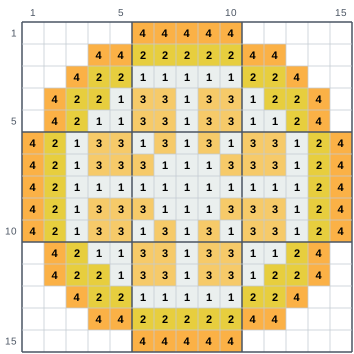
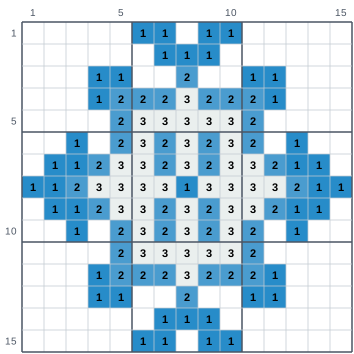
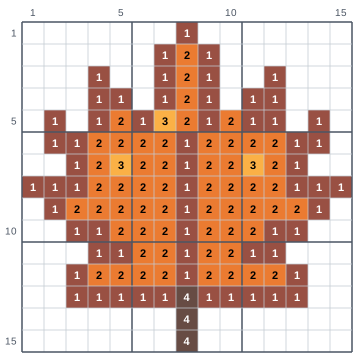
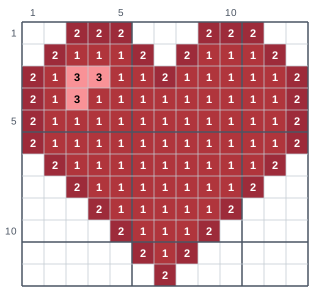
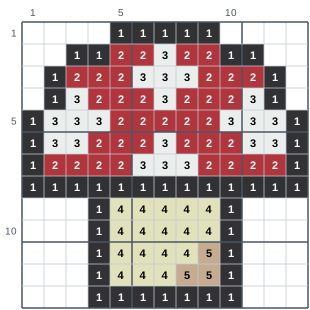
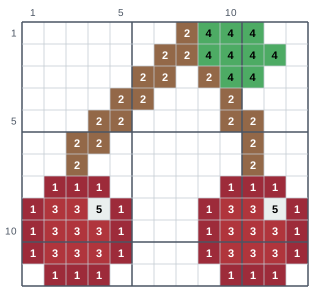
12 ready designs from our pattern library, drawn as numbered pixel art grids. Each square shows the number of its color in the key, and bold lines mark every 5 squares, so you can copy a design onto paper square by square. Open one in Draw to change it or print it as color by number.
Easy pixel art grids
Beginner designs with 4 colors or fewer on one pegboard. See the collection.
Small pixel art grids
14 beads or less on both sides, for charms and magnets. See the collection.
-
-
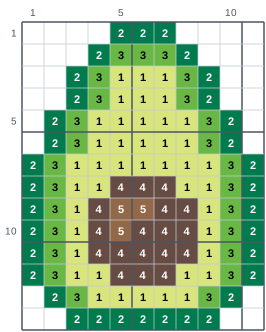 Avocado 11 × 14 squares
- 1 Sherbet
- 2 Dark Green
- 3 Kiwi Lime
- 4 Brown
- 5 Light Brown
-
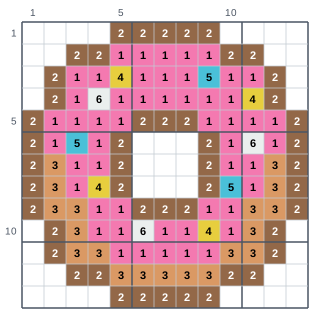 Donut 13 × 13 squares
- 1 Cotton Candy
- 2 Light Brown
- 3 Butterscotch
- 4 Yellow
- 5 Sky
- 6 White
-
Cute pixel art grids
Picked by hand: sweet treats, flowers and little objects in soft colors. See the collection.
-
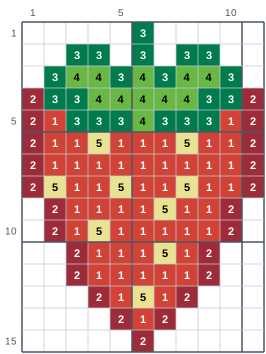 Strawberry 11 × 15 squares
- 1 Tomato
- 2 Cherry
- 3 Dark Green
- 4 Kiwi Lime
- 5 Pastel Yellow
-
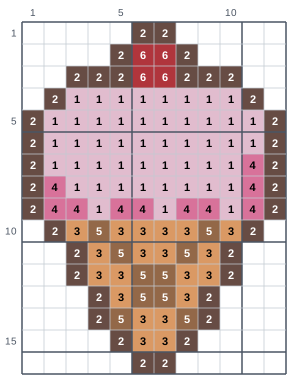 Ice Cream Cone 12 × 16 squares
- 1 Light Pink
- 2 Brown
- 3 Butterscotch
- 4 Bubblegum
- 5 Light Brown
- 6 Red
-
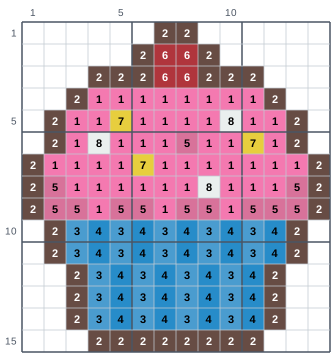 Cupcake 14 × 15 squares
- 1 Cotton Candy
- 2 Brown
- 3 Pastel Blue
- 4 Light Blue
- 5 Bubblegum
- 6 Red
- 7 Yellow
- 8 White
-
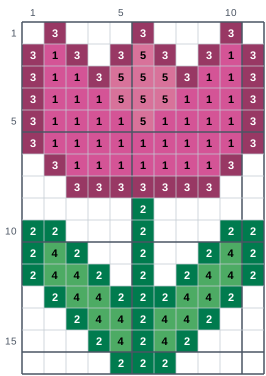 Tulip 11 × 16 squares
- 1 Pink
- 2 Dark Green
- 3 Raspberry
- 4 Bright Green
- 5 Bubblegum
Color it in a spreadsheet, or make it in beads
Pixel art is made of squares, and so are spreadsheets and fuse bead pegboards. Open in Excel saves your drawing as a workbook with one colored cell per square, ready for Excel or Google Sheets. To start from a picture inside a spreadsheet, the spreadsheet pixel art maker builds square cells for Excel and Google Sheets, including mystery pictures and color-by-number worksheets.
Make it in beads sends your drawing to the Perler bead pattern maker, which matches every color to a real Perler bead color and prints a true-size pattern with a bead count. A 16 × 16 drawing fits easily on one large square pegboard.
Frequently asked questions
How do I print a pixel art grid at the right size?
Leave Print size on Fit on one sheet for the whole grid on one page, or choose True size and type the square size. Download the PDF and print it at Actual size or 100%, never Fit to page in the print dialog. Every sheet says how big its squares are, and 10 squares measure exactly 10 times that, so you can check one row with a ruler. At 5 mm, 10 squares measure 50 mm.
What size pixel art grid should I use?
A 16 × 16 grid is the classic size for small pixel art and icons. Use 8 × 8 for very simple shapes, 32 × 32 for more detail and 64 × 64 for larger scenes. You can set any size from 4 to 128 squares on each side.
Can I draw pixel art on my phone?
Yes. Choose Draw, pick the pencil and a color, and tap or drag on the grid. Two fingers move and zoom. Your drawing is saved in this browser after every change, so it is still there when you come back.
How do I turn a photo into a pixel art grid?
Choose Photo and upload a picture, take one with the camera on a phone, drop a file on the grid or paste an image. Set the width (8 to 128 squares) and the number of colors (2 to 32); the result opens in the editor, so you can fix any square by hand.
Is my photo uploaded anywhere?
No. The photo is turned into squares inside your browser and is never sent to us or anyone else. The link you can copy holds the grid settings only, never your photo or your drawing.
Can I color my pixel art in Excel or Google Sheets?
Yes. In Draw or Photo, Open in Excel saves a spreadsheet with one colored cell per square. Open it in Excel, or import it into Google Sheets. To start from a picture in a spreadsheet, use the spreadsheet pixel art maker.