Spreadsheet Pixel Art Maker
Turn any picture into pixel art with square colored cells for Excel or Google Sheets.
More options
Loading…
Copied. Now paste it into Google Sheets:
- Open a blank sheet (sheets.new).
- Click cell A1 and paste (Ctrl+V, or ⌘+V on a Mac).
- Press Ctrl+A to select all, right-click a column letter, choose Resize columns, enter 21 and click OK.
Did your file open correctly?
- Grid
- –
- Colors
- –
- Filled cells
- –
Color key
Mystery picture and worksheet
Mystery picture
The picture starts hidden. Each correct answer reveals part of it.
Type a question and its answer on each row. Saved in this browser only, never uploaded.
Color-by-number worksheet
A number in every cell, bold lines every 5 cells, a color key and a small answer picture. Print it or save it as a PDF.
How to make spreadsheet pixel art
- Add a picture. Upload a photo or drawing, drop it on the preview, paste it, take a photo on your phone, or pick one of the 10 starter templates.
- Choose the grid width and colors. Grid width is the number of cells across; the height follows your picture. Fewer colors give bolder art.
- Copy it or download it. Copy for Google Sheets puts colored cells on your clipboard. Download Excel file saves a ready-made .xlsx with square cells and a color key.
- Paste or open it. In Google Sheets, click A1 and paste, then resize the columns to 21. In Excel, open the file: it is already square and fits on one printed page.
What is spreadsheet pixel art?
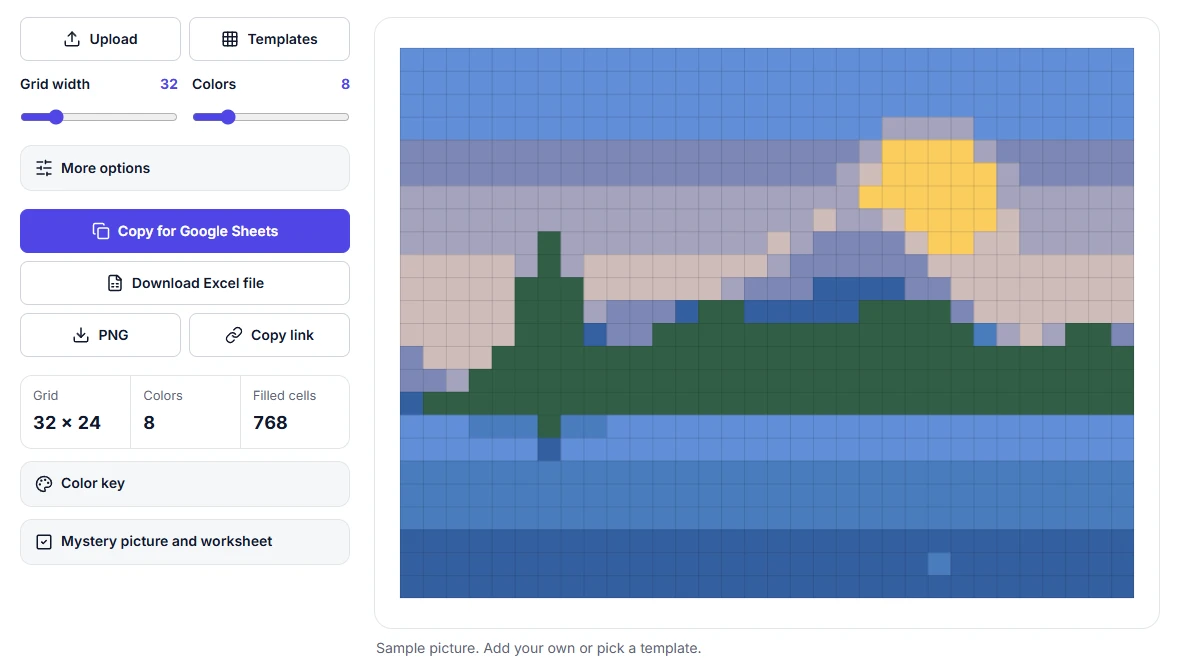
Spreadsheet pixel art is a picture made from the cells of a spreadsheet. Each cell is one pixel, filled with a solid color, and the columns are narrowed until every cell is a small square. Zoom out and the grid turns into an image. Teachers use it to practice formatting, coordinates and math; students and hobbyists like it because the result is clean and easy to share.
Making it by hand means resizing every column, then coloring hundreds or thousands of cells one at a time, or setting up number-to-color rules before you start. Some generators do not make real pixel art at all and split each pixel into separate red, green and blue stripes. This maker gives you true colored cells straight away: one click, square cells, and nothing to set up.

Excel pixel art and Google Sheets pixel art
For Google Sheets pixel art, copy and paste is the fastest way. Click Copy for Google Sheets, open a blank sheet (sheets.new), click cell A1 and paste. Then press Ctrl+A, right-click a column letter, choose Resize columns, type 21 and click OK. You can also upload the Excel file to Google Drive and open it with Google Sheets.
For Excel pixel art, download the file. It has two sheets. Pixel Art holds the picture, with every column and row sized for square cells and print settings that fit it on one page. Color Key lists each color with a swatch, its number, its hex code and how many cells use it. Each cell also stores its color number in a font the same color as the fill, so it stays invisible but you can see which color a cell is when you select it.
Colored cells vs mystery reveal
Colored cells is the finished artwork: every cell already has its color. Use it to show, share or print the picture.
Mystery reveal turns the same picture into an activity. The picture starts blank; students answer questions on the Questions sheet, and every correct answer uncovers one color of the picture. Choose math facts (addition, subtraction, multiplication, division or mixed, at three levels) or type your own questions for any subject. Turn on Split into more parts for up to 20 questions. The file includes the answer key and teacher notes, so there is nothing to set up.
The answers are on a hidden sheet, which anyone can unhide, so mystery pictures are best for practice and fun rather than tests.
Starter templates and printable worksheets
No picture handy? Click Templates and choose one of 10 original designs: apple, pumpkin, snowman, heart, star, sun, cat face, fish, rocket or pine tree. Each uses 4 to 8 colors, which suits a mystery picture.
For a paper activity, click Print worksheet. You get a color-by-number sheet with the color number in every cell, a bold line every 5 cells, a color key and a small answer picture. Print it, or choose Save as PDF in the print dialog. Grids up to 48 cells wide print best.
Getting a clean result
- Start with a simple picture. One clear subject on a plain background works best. Crop tightly, or use Square crop under More options.
- Pick the grid width for the job. 24 to 32 cells across suits icons and first activities, 48 to 64 suits faces and pets, and up to 128 makes a detailed poster.
- Use fewer colors than you think. 6 to 12 colors look bold and are quick to color by hand. Raise the count for photos with soft shading.
- Try dithering for photos. It mixes neighboring colors in a pattern so gradients like skies look smoother. Leave it off for logos and cartoons.
- Need the background empty? Use a PNG with a transparent background and tick Keep transparent areas empty, so those cells have no fill.
- Need standard colors? Choose the Classic Excel palette to use only colors from Excel's classic color set.
Classroom ideas
- Math facts practice: download a mystery picture with multiplication facts and let students work until the picture appears.
- Color by number: print the worksheet and let students color it with crayons or markers.
- Coordinates practice: ask students to name the cell (such as D7) where a color starts or ends.
- Fractions and percentages: the Color Key shows how many cells each color uses, so students can work out what fraction of the picture is sky or grass.
- Spreadsheet skills: have students draw their own pixel art with the fill tool, then compare it with a version made here.
- Google Classroom: open the mystery file in Google Sheets, then assign it with Make a copy for each student. The file's Teacher Notes sheet lists the steps.
Frequently asked questions
How do you make pixel art in a spreadsheet?
Each cell becomes one pixel: make the columns as narrow as the rows are tall so the cells are square, then fill each cell with a color. Doing that by hand takes hours. With this maker you upload a picture, choose a grid width and number of colors, and get every cell filled for you as an Excel file or as a table you paste into Google Sheets.
Does it work in Google Sheets?
Yes, in two ways. Click Copy for Google Sheets, open a blank sheet, click cell A1 and paste: the colors come with it. Or download the Excel file and open it in Google Sheets with File, then Import, then Upload. Both keep every color.
Can I copy and paste pixel art into Google Sheets?
Yes. Copy for Google Sheets puts the picture on your clipboard as a table of colored cells. Paste it into cell A1 of a blank sheet, then select all, right-click a column letter, choose Resize columns and enter 21 so the cells become square.
How do I make the cells square?
The Excel file already has square cells, so there is nothing to set up. After a paste in Google Sheets, select all, right-click a column letter, choose Resize columns and enter 21. Rows in Google Sheets are 21 pixels tall, so 21 pixel columns make square cells.
What grid size should I use?
For a simple picture or a first activity, 24 to 32 cells wide is plenty. Use 48 to 64 for faces and detailed photos, and up to 128 for a large poster. Fewer colors (6 to 12) give clean, bold art; more colors give smoother shading but more cells to color by hand.
How does the mystery picture work?
Open Mystery picture and worksheet under the tool, choose math facts or type your own questions, and download the mystery file. Students type answers in the yellow cells on the Questions sheet; each correct answer reveals one color (or one part) of the picture on the Picture sheet, and a wrong answer turns light red. It works in Excel and Google Sheets, and the answers sit on a hidden Key sheet.
Can students use it on Chromebooks?
Yes. The maker runs in Chrome on a Chromebook with nothing to install, and Copy for Google Sheets pastes straight into Google Sheets. It also works on Windows, Mac, iPad and phones.
Is my image uploaded?
No. Your picture is processed by your own browser and never leaves your device. The link you can copy saves only your settings, such as grid width and colors, never the picture.
Last updated: November 10, 2026