Make Excel pixel art from a picture
- Upload a photo or drawing, or click Templates for a ready-made design.
- Set Grid width (the number of columns) and Colors. The preview shows exactly what Excel will show.
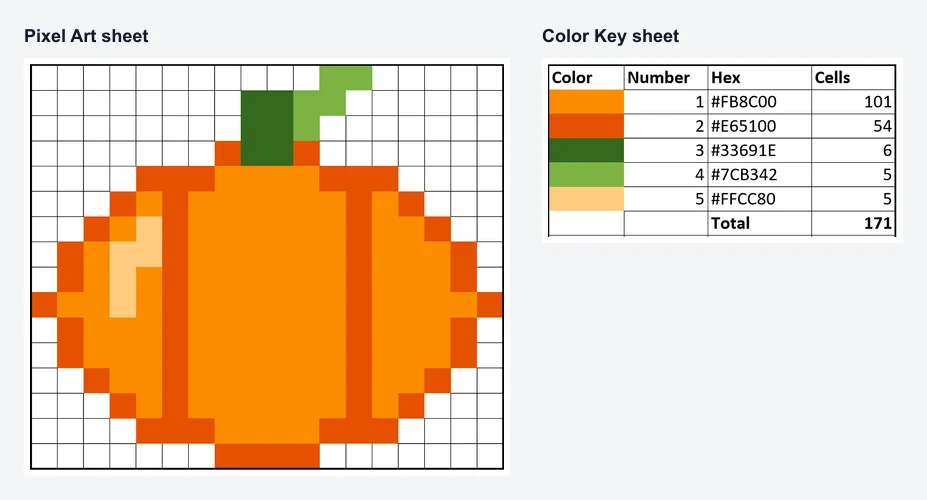
- Click Download Excel file. You get one .xlsx file with two sheets: Pixel Art and Color Key.
- Open it in Excel. Every cell is already square and filled, so there is nothing to format.
For a quiz that reveals the picture, switch to Mystery before you download. For paper only, switch to Worksheet.
Open the file in Excel desktop or Excel for the web
Excel desktop: double-click the downloaded file. Files from the internet open in Protected View first, with a yellow bar at the top. The picture shows right away, but click Enable Editing before you change anything; a mystery file needs it to check answers.
Excel for the web (free): sign in at office.com with a Microsoft account, open OneDrive, click Upload and choose the file, then click it to open it in the browser. This is the easy route on a school laptop without Office installed, and it works the same way inside Microsoft Teams.
The Pixel Art sheet opens at 100% zoom. Hold Ctrl and scroll, or use the zoom slider in the bottom-right corner, to see a large picture all at once.
How the colors are stored
Each pixel is one cell with a solid fill, the same fill you would pick from Home, Fill Color. There are no images, shapes or macros in the file, so it stays small: a 64 by 64 picture with 16 colors is under 20 KB.
Each filled cell also contains its color number from the Color Key (1 is the first color), typed in a font the same color as the fill. You will not see it on the sheet, but the formula bar shows it when you click a cell. That number is useful: =COUNTIF(A1:AF32,3) counts the cells of color 3 in a 32 by 32 picture, and the result matches the Cells column on the Color Key sheet. It is also why other spreadsheet apps import every column of the picture.
The Color Key sheet lists each color with its swatch, number, hex code and cell count, plus the total number of filled cells. Empty cells, from a transparent background, have no fill and no number.
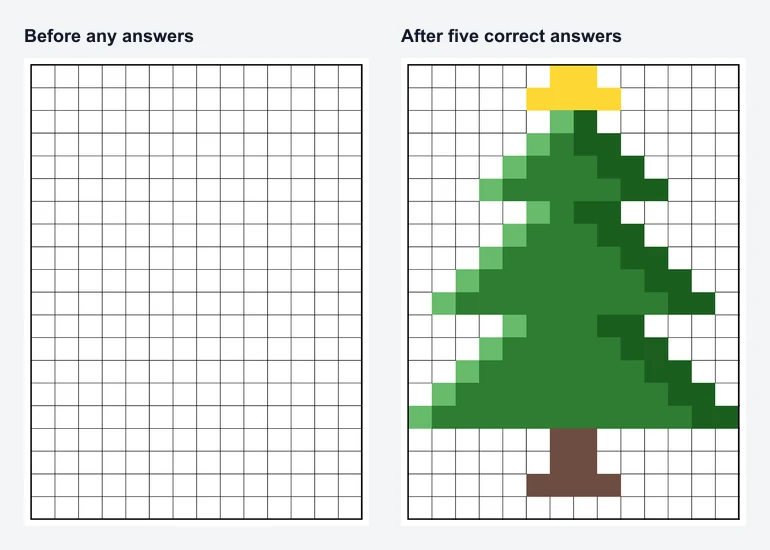
How the mystery file works in Excel
A mystery file is plain Excel: formulas and conditional formatting, no macros. Each cell of the Picture sheet holds a formula that compares one answer on the Questions sheet with the matching answer on the Key sheet. When they match, the formula returns the cell's color number; otherwise it returns nothing. A conditional formatting rule for each color, "cell value equal to 3" and so on, then paints the fill and the font. To see the rules, unprotect the sheet and open Home, Conditional Formatting, Manage Rules.
On the Questions sheet only the yellow answer cells are unlocked. A hidden Check column marks each answer right or wrong, and a rule turns a wrong answer light red. Answers are compared without regard to capital letters or extra spaces, so "Paris", "paris" and "Paris " all count.
The Picture and Questions sheets are protected without a password, which stops students from typing over the formulas by accident. Review, Unprotect Sheet opens them for editing with no password prompt. The answers sit on a hidden sheet named Key. Hidden is not locked: anyone who right-clicks a sheet tab and chooses Unhide can read it. Treat a mystery picture as practice, not as a graded test.
Draw your own pixel art in Excel by hand
Want students to build the picture themselves? Set up a blank grid first:
- Open a new blank workbook and press Ctrl+A (or click the triangle above row 1) to select every cell.
- Click Home, Format, Column Width, type 2.8 and click OK.
- Click Home, Format, Row Height, type 15 and click OK. The cells are now square.
- Select a cell, or drag across several, and pick a color from the Fill Color bucket. Hold Ctrl to select cells that are not next to each other.
Two shortcuts save a lot of clicks: F4 repeats the last fill on whatever you select next, and the Format Painter copies a cell's color to other cells. A downloaded file from this page makes a good model to copy from, and its Color Key tells students how many cells of each color they need.
Print Excel pixel art
The Pixel Art sheet is set to fit on one page, in landscape for wide pictures and portrait for tall ones, so File, Print shows the whole picture straight away. Choose a color printer, and print the Color Key sheet too if students need the numbers.
Excel does not print gridlines unless you ask. For borders between the cells, as in the pictures above, tick Print under Gridlines on the Page Layout tab. For a poster, raise Width and Height under Scale to Fit to 2 or more pages and tape the sheets together.
For a sheet to color with crayons, the Worksheet mode in the tool is a better fit: it prints a color number in every cell with a color key. Students who prefer Google Sheets can use the Google Sheets pixel art copy and paste method instead of the Excel file.