Mystery Pixel Art in Google Sheets and Excel for Teachers
A mystery pixel art sheet is a short quiz hidden inside a picture. Students answer questions in a spreadsheet, and each correct answer colors in part of an image they cannot see yet. It is practice that checks itself and keeps students working to the end.
You can build one in about two minutes with the free spreadsheet pixel art maker in Mystery mode. The file works in Google Sheets and Excel, with the answer key and teacher notes included.
What mystery pixel art is, and why it works
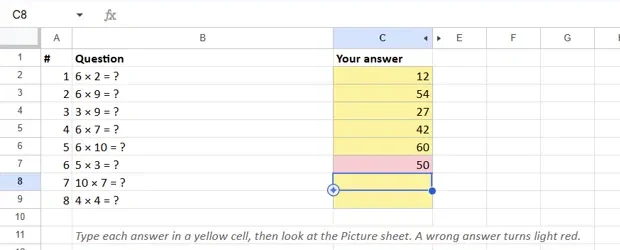
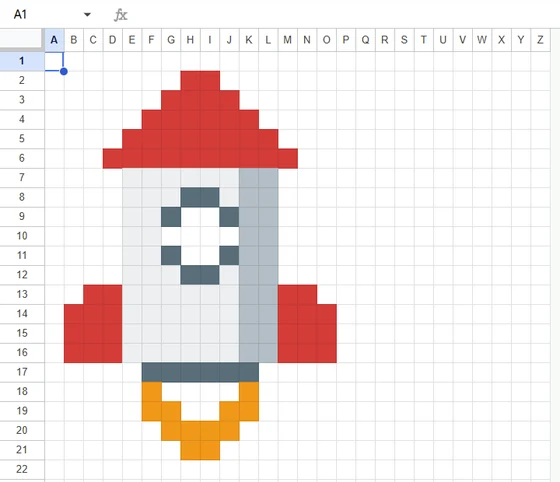
The file has a Questions sheet and a Picture sheet. The Picture sheet starts blank. Every question unlocks one color: type the right answer and every cell of that color appears at once. A wrong answer turns its cell light red and reveals nothing, so students know straight away to look again.
That instant feedback is what makes it useful for practice. Students do not wait for marking, they correct themselves, and the half-finished picture gives them a reason to finish the last few questions. For you, progress is visible from across the room: the more of the picture shows, the more answers are right.
Make one in two minutes
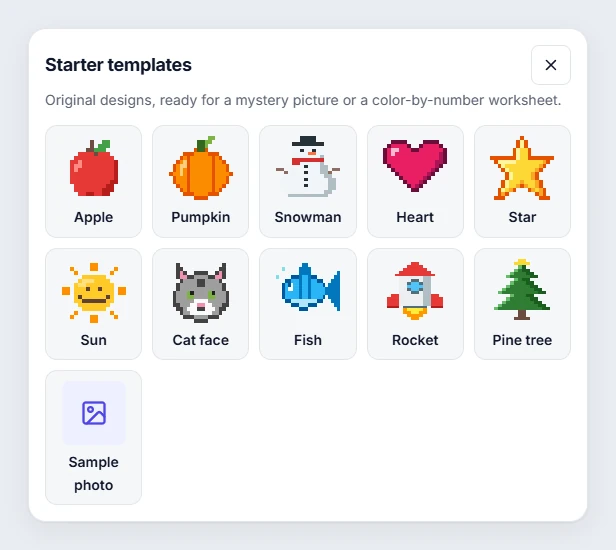
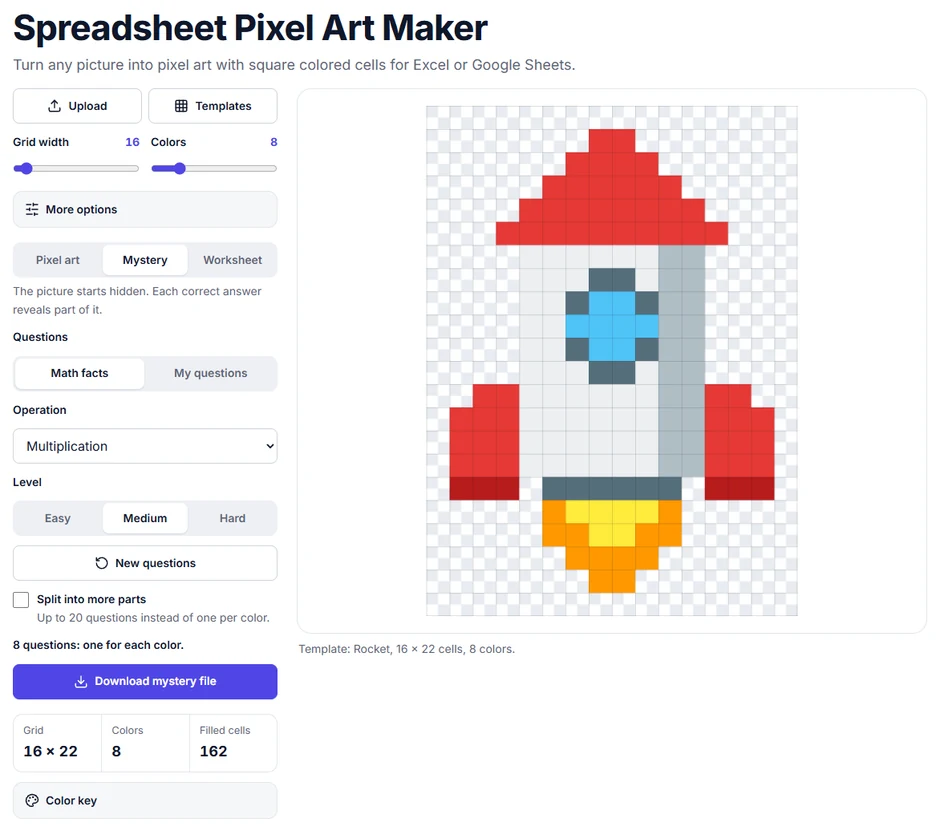
- Open the maker and click Templates. Pick one of the ten original designs, such as the rocket, apple or pine tree. Each uses 4 to 8 colors, which means 4 to 8 questions.
- Above the buttons, switch from Pixel art to Mystery.
- Choose the questions:
- Math facts: pick addition, subtraction, multiplication, division or mixed, and a level: Easy, Medium or Hard. Click New questions for a different set.
- My questions: type a question and its answer in each row, for any subject. Fill empty rows with math facts if you run short.
- For more questions, tick Split into more parts (up to 20).
- Click Download mystery file.
What students see
Students type answers in the yellow cells on the Questions sheet, then switch to the Picture tab to watch it fill in. Answers are checked without regard to capital letters or extra spaces. Here is the same Rocket file, with five right answers and one wrong one, in both apps.
In Excel

In Google Sheets
Question ideas by grade band
Any question with one short, exact answer works. Avoid answers that can be written several ways ("7" or "seven", "Mt. Everest" or "Mount Everest"), or say in the question which form you expect.
Grades K–2
- Math: 4 + 3 (7), 10 − 6 (4), the number after 19 (20), how many sides a triangle has (3).
- Spelling: "Spell the word for a baby cat" (kitten), "Unscramble: g-p-i" (pig).
- Vocabulary: "The opposite of up" (down), "A word that rhymes with hat and starts with c" (cat).
- Science: "Which season comes after winter?" (spring), "How many legs does an insect have?" (6).
Grades 3–5
- Math: 7 × 8 (56), 72 ÷ 9 (8), half of 30 (15), the perimeter of a 5 by 3 rectangle (16).
- Spelling: the plural of "mouse" (mice), the past tense of "run" (ran).
- Vocabulary: "The word for a baby frog" (tadpole), "The prefix that means not, as in unhappy" (un).
- Capitals: the capital of Texas (Austin), the capital of Japan (Tokyo).
- Science: "The planet closest to the Sun" (Mercury), "Water freezes at how many degrees Celsius?" (0).
Grades 6–8
- Math: solve 3x + 4 = 19 (5), 25% of 80 (20), −7 + 12 (5), the next prime after 13 (17).
- Vocabulary: "The word for a story about a person's life written by that person" (autobiography).
- Capitals: the capital of Canada (Ottawa), the capital of Kenya (Nairobi).
- Science: the chemical symbol for sodium (Na), "The part of a cell that holds its DNA" (nucleus).
Math facts mode generates fresh sets for you: Easy suits early grades, Medium suits times tables and division facts, and Hard adds larger numbers.
Share with Google Classroom
- Upload the downloaded file to Google Drive and open it with Google Sheets. Choose File, Save as Google Sheets so it becomes a normal Google spreadsheet.
- Give it a clear name, such as "Rocket mystery: times tables".
- In Google Classroom, open the class and choose Classwork, Create, Assignment.
- Click the Google Drive button, pick the spreadsheet and click Insert.
- Change Students can view to Make a copy for each student, then assign it.
Each student gets a private copy with working formulas, and you can open any copy from the assignment to see how far they have got. The Teacher Notes sheet in every file repeats these steps, along with the steps for Excel and Microsoft Teams.
Printable color-by-number for paper days
No devices today? Switch the maker to Worksheet mode and click Print worksheet. You get a color-by-number page with a number in every cell, a color key and a small answer picture, from the same template. Pair it with the mystery file: students who finish on screen can color the paper version, or the other way round.
Honest limits
The answers are stored in the file on a sheet named Key, which is hidden but not locked. Anyone who right-clicks a sheet tab in Excel and chooses Unhide, or opens View, Hidden sheets in Google Sheets, can read them. A spreadsheet that checks itself has to carry its answers somewhere. Use mystery pictures for practice, warm-ups and review, not for graded tests.
Troubleshooting
The picture stays blank
Most often the file is open in a preview instead of the real app: Google Drive's preview and Excel's Protected View do not run formulas. In Drive, choose Open with, Google Sheets. In Excel, click Enable Editing on the yellow bar. If it is still blank, check that the answers are on the Questions sheet in the yellow column.
A right answer is not accepted
Capital letters and spaces before or after the answer do not matter, but spelling and form do: "twelve" is not "12", and "12 cm" is not "12". Check the Key sheet (as the teacher) to see the exact answer, and edit questions so the expected form is clear.
Wrong answers do not turn red
The self-check is built and tested for Excel and Google Sheets. Other spreadsheet apps may handle the formatting rules differently, so open the file in one of those two. In Google Sheets, import the file rather than viewing the .xlsx in Drive's preview.
A message says the cell is protected
The Questions and Picture sheets are protected, without a password, so formulas cannot be typed over. The message means someone clicked outside the yellow answer cells. To change the file yourself, use Review, Unprotect Sheet in Excel, or Data, Protect sheets and ranges in Google Sheets.
Quick answers
Is the mystery pixel art maker free?
Yes. The maker, the ten starter templates, the mystery files and the printable worksheets are free, with no account and no sign-up.
How many questions can one picture have?
One per color, so 4 to 12 for most pictures. Tick Split into more parts to divide the colors into bands and get up to 20 questions from the same picture.
Can I use my own picture instead of a template?
Yes. Upload any picture, keep the color count between 4 and 12 so the questions stay manageable, then switch to Mystery. The picture is processed in your browser and is not uploaded anywhere.
Do students need Excel?
No. The same file works in Google Sheets, which is free, and in Excel for the web. Students only need whichever one your school already uses.
Can I reuse my questions next week?
Questions you type under My questions are saved in your browser on that device, so they are there the next time you open the maker. They are not stored on any server, so use the same browser to find them again.
Related tools
- Spreadsheet pixel art maker: Mystery, Pixel art and Worksheet modes with ten starter templates.
- Google Sheets pixel art: paste or import a picture and share it with your class.
- Excel pixel art generator: how the mystery file works in Excel, and printing.
- How to make pixel art in Google Sheets: three methods, step by step.
Last updated: November 12, 2026